Octomind 0.29.0: A Face, A Brain, And Tools That Ship With Your Repo

Before 0.29.0, opening Octomind felt like opening a terminal. After it, it feels like opening a tool.
Type octomind run. In the first second: a pixel-art octopus renders into the buffer beside your version, role, model, and working directory. A continuous blue rail runs down the column where you type. A footer pins to the bottom showing what this turn costs in real dollars and how much context window you have left. When you submit, your message gets pulled out of the input and re-rendered as a highlighted block. The assistant replies framed between horizontal rules. Tools execute inside boxes with rails and glyphs.
Then something happens that isn't on the screen. The right skills load themselves — not the ones whose trigger words you happened to use, but the ones that match what you're actually trying to do. The activation log scrolls a few bullet lines. The capability set is filtered, scored, and gated before the assistant even starts thinking.
And if the repo you're in has a .agents/tools/ folder, the model has already loaded the project's own tools — your build script, your deploy script, your internal query script — auto-discovered, schema-typed, callable by name. No setup. No config. The AI sees them because they exist.
Three things changed in 0.29.0. The terminal got a face. The session got a brain that picks its own context. And projects ship their own MCP tools right next to the code, in any language you want.
The Banner
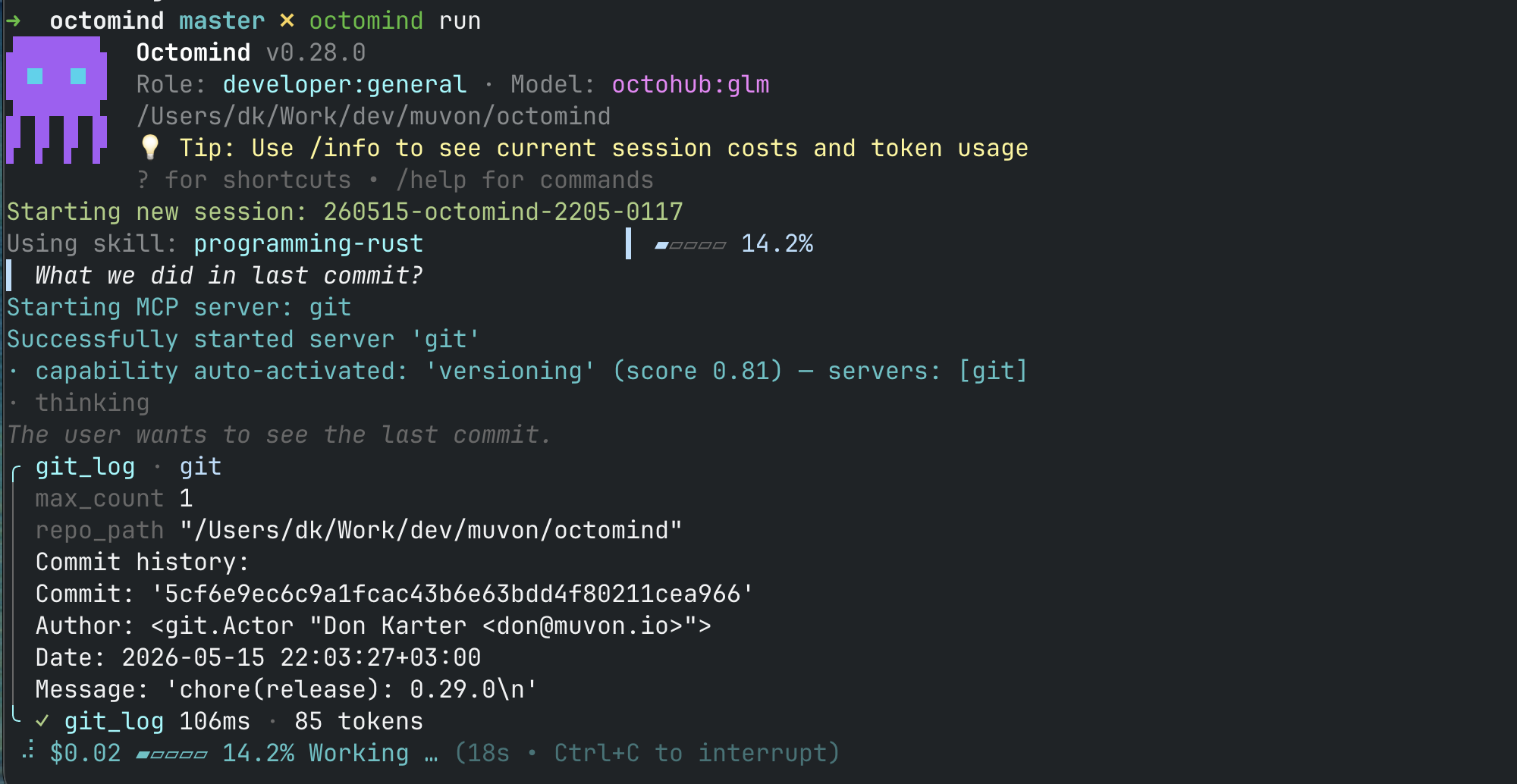
Every interactive session opens with a real banner. The icon on the left is rendered using ANSI half-block transparency — it renders sharp on a dark terminal, sharp on a light terminal, and at the right size for the row. There's no fragile graphics protocol fallback chain. It's text. It works everywhere.
Beside the icon: version, the role you booted into, the model behind that role, the working directory you're in, and a rotating tip line. The session ID prints below. Skills that auto-activate get bullet-prefixed log lines you can actually scan. The startup spinner only shows up if startup is slow, and never leaks residue into your first prompt.
The Status Line You Can Not Unsee
Look at the bottom of your session. There's a line that wasn't there before.
$0.02 ▰▱▱▱▱ 14.2% Working … (18s · Ctrl+C to interrupt)That line is now permanent. It sits above the prompt. It always shows:
- Cost so far, with a delta for the current turn rendered next to the running total when it's non-zero. The numbers are real — per-token pricing pulled per provider, per model, with cache reads priced separately from fresh tokens. Not estimates. Not averages. Actual cents.
- A 5-cell progress bar for context window usage. Filled cells turn yellow then red as you approach compression. One glance tells you whether you have room or whether the next turn is going to summarize.
- The percentage beside the bar for the precise number when you need it.
- Working state — spinner glyph, elapsed seconds on the current request, and a hint for
Ctrl+Cthat doesn't echo into your input when you press it.
Cost transparency was the first thing we wanted and the last thing to land cleanly. Pricing comes from a per-provider table that distinguishes cache-write, cache-read, input, and output. Switch from a cheap model to a frontier one mid-session and the delta tells you immediately whether the answer was worth it. We use this internally to catch sessions that've drifted into expensive territory before they hit a bill.
The Continuous Rail
The single change that makes the conversation feel like a conversation: a blue marker on every visual row of submitted input — including the multiline continuations of long pastes.
The prompt indicator is the same vertical rail. Multiline input indents to align with it. When you submit, the rail stays on those rows in the history. When the assistant replies, its response is framed between horizontal rules with its own indentation. You can scroll back through a two-hour session and immediately see where you spoke and where the assistant did.
This sounds small. It's not. The first time you scroll back through a long session under the new layout, the "wall of indented logs" feeling is gone. It's a transcript.
Tool Execution as Framed Blocks
Tool calls used to print as raw lines. Now they render as blocks.
Each tool execution gets a header (tool name, server namespace), an indented parameter block, a body with output, and a footer with timing and token count. Errors render in their own framed block with red rails so they can't be missed. Parallel tool calls — when the model fires three things at once — preview as a stack with truncated parameters, then expand inline as each one completes.
The tool block uses the same vertical-rail aesthetic as the input prompt. So a turn with five tool calls reads as five clean blocks, not a stack of interleaved log lines.
When a tool gets denied by the user, the warning is yellow. When a tool result is truncated for length, there's an inline indicator in the footer. When something deadlocks, you can interrupt it and the spinner cleans up properly.
The Small Touches
These don't headline a release. They're why the new layout feels finished:
- Submitted input gets re-rendered with styled markers and italics, replacing the raw reedline output, so what you typed and what's shown in history are visually distinct.
- The spinner is plain. It no longer leaks bytes during markdown render, which used to corrupt code blocks mid-stream.
-
Ctrl+Cis silent. The literal^Cecho that used to clutter your terminal when interrupting is suppressed. - Terminal echo is disabled during prompt setup, and stdin is drained before showing the prompt — so keypresses you fired while the assistant was thinking don't corrupt the next prompt line.
- Thinking blocks (for extended-thinking models) render as a dim header with italic body, instead of the full bracketed dump.
- Capability and skill activation logs are prefixed with bullet glyphs, so they pop visually distinct from assistant prose.
- Duplicate status messages are suppressed when nothing has changed between turns.
- Markdown rendering, terminal layout, and deadlocks got a sweep — half a dozen subtle race conditions and rendering glitches are gone.
You'll notice the absence of glitches more than the presence of polish. That's on purpose.
Capabilities Pick Themselves
Now the part that isn't on the screen. The session is loading its own tools.
In 0.25 and 0.26 we shipped declarative skill activation. You wrote trigger phrases like "deploy", "kubernetes", "DNS", and the runtime did a literal match against your message. It worked in demos. It broke the moment you phrased something differently — type "ship to staging" instead of "deploy" and your deploy skill silently never loaded. We kept patching the trigger lists. It was the wrong model.
In 0.29, capability activation is semantic, intent-based, and gated. The whole pipeline is new — none of this existed before 0.27. Here's what happens between the moment you press Enter and the moment the assistant starts thinking:
- Intent extraction. Instead of matching your literal message, the runtime extracts what you're trying to accomplish ("refactor authentication middleware," "investigate a DNS failure," "summarize today's PRs"). Phrasing stops mattering.
- Local embedding. The intent is embedded on your machine — no network round-trip, no API cost — using the local embedding engine that replaced ONNX Runtime in this release.
- Domain filter. The capability catalog is filtered by your active role's domain. A
developer:rustsession doesn't even considercontent:seoorlawyer:uscapabilities. The candidate set shrinks before scoring. - Semantic scoring. Remaining candidates score against the intent embedding via cosine similarity. Keyword fallback covers exact-match cases that beat embeddings.
- Margin gate. A capability only activates when its score beats the next-best by a defined margin. Close-call ties don't all fire — you don't get six capabilities activating because they all kinda matched.
- LRU eviction. Active capabilities sit in a bounded window. If something new activates and the window is full, the least-recently-used one gets evicted. Long sessions don't accumulate stale context.
- Activation log. Every step is bullet-logged so you can see exactly which capabilities loaded, which scored but were gated, and which were filtered out by domain. Verbose mode prints the raw scores.
- Coverage reporting. The runtime tracks which capabilities never get picked, fed back into our next round of trigger tuning.
In practice: type "refactor this auth middleware" and you get the relevant developer skills, plus versioning for git work, plus codesearch for grepping the codebase. Type "what is the deal with this DNS issue" and you get devops capabilities. Type "summarize today's PRs in slack tone" and you get content:editor plus versioning. You don't configure any of this per session. You don't memorize trigger phrases. The right context shows up.
We tried cross-encoder reranking on top of the bi-encoder embeddings in 0.29 and rolled it back. The latency cost didn't justify the precision gain. The current pipeline is what survived the bake-off — and it's the one we're actually happy with.
This is the part of 0.29 that competitors don't have. Claude Code, Codex, and Aider expose tools, but you wire them yourself per session or per project. Octomind has a catalog of capabilities, each with semantic triggers, and the session figures out which subset it needs from the message it just received. Less configuration. Less surprise. More relevant context.
If you've written custom skills with hand-tuned trigger phrases under the old system, they still work — but the trigger phrases now get embedded and matched semantically rather than as literal substrings. You may see different activation patterns than you did under 0.26. /info tells you what's active in any session.
MCP, Built Into Your Project
This one is genuinely new. Nobody else has it.
Drop a script into .agents/tools/ in any repo. Make it executable. It becomes an MCP tool the AI can call — that turn, with no config, no registration, no daemon, and no server entry in any toml file. Any language. Any syntax. Auto-discovered every turn. Hot-reloads on save.
Every other AI assistant in a terminal makes you either (a) live with a fixed set of built-in tools, (b) install a separate MCP server somewhere, or (c) wire up custom tool integrations through a central config file you have to maintain alongside the actual project. Claude Code, Codex, Cursor's CLI, Aider — none of them let you scope tools to a single repo, ship them with the repo, and have the AI pick them up automatically the next time anyone runs a session there.
Octomind 0.29 does. And the design is small enough to fit on one screen.
The Idea
Every project has a handful of "things you do here." Build with the right flags. Deploy to staging through your specific pipeline. Query the internal status board. Lint with the house style. Tail the right log path. Today these live in a Makefile, a scripts/ folder, a package.json, or somebody's shell history. The AI sitting in your terminal has to be told about them every session, or has to read your README and guess.
Encode each one as a single file. The AI sees them automatically. It calls them by name. You hide the complexity — five build flags, three env vars, the right kubectl context — behind a tool the model invokes the moment you say "build the API for release."
A Complete Tool
#!/usr/bin/env bash
# @description Build and run our release pipeline locally.
# @param *target string  Build target: api, worker, or web
# @param release boolean Use the release profile

set -euo pipefail
profile_flag=""
[[ "${OCTOMIND_PARAM_RELEASE:-false}" == "true" ]] && profile_flag="--release"

case "$OCTOMIND_PARAM_TARGET" in
  api)    cargo build $profile_flag -p api ;;
  worker) cargo build $profile_flag -p worker ;;
  web)    cd web && pnpm build ;;
esac
Save as .agents/tools/build, chmod +x, done. Next turn, the model sees a build tool with target (required, marked with *) and release (optional). It'll pick target=api release=true when you say "build the API for release." You never write that script's path into a prompt. You never paste flags. You ask in English; the AI calls the tool; the right command runs.
Header Syntax
The leading comment block is the schema. Two tags — that's the whole format:
# @description Free text the model sees in the tool list. Continuation
# lines without an @ tag append to the previous one.
# @param [*]NAME TYPE DESCRIPTION...-
*prefix on the param name → required. No prefix → optional. - TYPE → one of
string,number,integer,boolean,array,object. Aliases likestr,int,bool,list,objare normalized. Unknown types fall back tostring. - DESCRIPTION → everything after the type, free text.
Octomind converts that header into a standard JSON-Schema tool definition. The model's harness validates calls against the schema before running — required params enforced, types checked, missing-param errors handed back cleanly.
Comments work with whatever prefix your language uses: # for bash, python, ruby, lua, perl, awk; // for node, deno; -- for lua, haskell, SQL shells. The shebang on line 1 picks the interpreter — Octomind only cares that the OS can execute the file.
Three Languages, Same Folder
You can mix languages freely in the same .agents/tools/ directory. The model doesn't see which language a tool is written in — only its name, description, and parameters.
Bash — env-driven:
#!/usr/bin/env bash
# @description Greet someone politely.
# @param *who string Person to greet
# @param shout boolean Yell the greeting

set -euo pipefail
greeting="Hello, ${OCTOMIND_PARAM_WHO}"
[[ "${OCTOMIND_PARAM_SHOUT:-false}" == "true" ]] && greeting="${greeting^^}!"
printf '%s\n' "$greeting"
Python — stdin JSON:
#!/usr/bin/env python3
# @description Sum a list of integers.
# @param *values array JSON list of integers, e.g. [1,2,3]
import json, sys
params = json.load(sys.stdin)
print(sum(params["values"]))
Node:
#!/usr/bin/env node
// @description Capitalize a string.
// @param *text string Input text
let buf = '';
process.stdin.on('data', (d) => (buf += d));
process.stdin.on('end', () => {
	const { text } = JSON.parse(buf || '{}');
	console.log(text.toUpperCase());
});
Every script gets both inputs delivered on every call:
| Channel | What you get |
|---|---|
| stdin | A JSON object with all params: {"target":"api","release":true}. One write, then EOF. |
env OCTOMIND_PARAM_<UPPER> | Each param as its own env var. Strings/numbers/bools become their natural string form; arrays/objects are JSON-stringified. |
env OCTOMIND_TOOL_NAME | The tool name (useful if one binary handles multiple tools). |
env OCTOMIND_WORKDIR | The session's working directory (also the script's cwd). |
| stdout | Result content the model reads. |
| stderr | Appended to the result with an [stderr] marker. |
| exit code | Non-zero → reported as a tool error. |
Pick whichever input shape fits your language. Bash scripts usually read env vars. Python scripts often parse stdin JSON. Node scripts typically prefer stdin. They all arrive every call.
How The AI Actually Uses It
The model gets your tool's description, its parameter schema, and your free-text type descriptions on every turn. Two messages of interaction look like this:
You: ship the worker to staging in release mode
AI: calls
buildwithtarget=worker release=true, sees stdout, then callsdeploywithenv=staging target=worker, reports success
You didn't say cargo build --release -p worker. You didn't paste a command. You didn't even type the tool name. The model picked build because the description said "build and run our release pipeline locally" and you asked it to build. It picked target=worker because you said "worker." It set release=true because you said "release mode." Then it picked deploy for the same reason and chained the calls.
This works because the model already speaks JSON-Schema fluently — function-calling has been a primitive for two years. What was missing was a no-friction way to put project-specific tools in front of it. That's what shipped here.
Discovery and Lifecycle
| Aspect | Rule |
|---|---|
| Path | <workdir>/.agents/tools/<tool-name> (no extension). |
| Tool name | The filename. Must match [A-Za-z0-9_-]+. Hidden files and bad names are skipped. |
| Executable | Must be chmod +x. Non-executable files are silently skipped (logged at debug level). |
| Discovery | A read_dir plus header parse, every turn. Cheap. No caching needed. |
| Hot reload | Edit a file and save. The next tool call uses the new header and body. No restart. |
| Workdir tracking | Discovery scans the session's current working directory. If you cd mid-session, the next turn's tool list reflects the new location. |
| Always-on | Appended to every role's tool list automatically. No [mcp.servers] entry. No allowed_tools filter. |
| Lowest priority on collision | If a local tool's name matches a config-defined or dynamic tool, the config/dynamic one wins. You cannot accidentally shadow shell by naming a script shell. |
Why It Matters
Most "AI in your project" stories end at config files and prompts. Sessions in 0.29 grow tools alongside the codebase. Each repo ships a custom tool surface in .agents/tools/ — committed, reviewed, versioned with the rest of the project. A new contributor checks out the repo and the AI immediately knows how to build, deploy, lint, and query the things that matter for that project. No shared MCP server to install. No daemon to start. No environment-specific config to drift.
The closest comparison is package.json scripts: — but those are name-only. Octomind tools come with typed parameters, required-field enforcement, free-text descriptions the model reads, and any language you want for the body. They're MCP servers in the dimensional sense — schema, validation, execution — packed into one file each.
It's MCP at the right altitude for "let me bolt a thing onto this one project." Which is what people actually want most of the time.
One Safety Note
Local tools run with the same privileges as the Octomind process. The assumption is "the project author wrote these scripts and committed them to the repo" — treat .agents/tools/ like a Makefile or a package.json scripts: block: trust the source. If you check out a third-party repo that ships local tools, audit them before running a session there.
Also Shipped Since 0.26.0
Three releases bundled into one post. The visible UX and the invisible capability brain are the headlines; here's the rest, briefly.
/schedule for time-based work. Type /schedule add when="in 30m" message="check the build" and the session will fire that message in 30 minutes. Recurring entries work the same way with every="1h". Schedules persist across restarts and can fire while you walk away — when an entry fires, it lands in the inbox of your running session, or auto-processes in the background if you opt in. The AI can also schedule things on its own behalf — "remind me in an hour" routes through the same tool.
/effort for reasoning controls. For models with adjustable thinking budgets (Claude with extended thinking, OpenAI reasoning models), /effort low|medium|high|xhigh|max sets the budget for the next turn. The default is medium. The cost line reflects the difference, since reasoning tokens often price differently than completion tokens.
Embeddings run on your machine. We replaced fastembed (which required ONNX Runtime as a system dependency) with candle plus our own octomind-embed. Builds are simpler, alpine and locked-down environments just work, and a persistent vector cache means the first message of a session no longer pays the embedding cost. This is the foundation under the capability brain above.
Runtime tool overlays. MCP tools can now register dynamically during a session — a tap can expose helper functions only inside its own scope, without restarting servers or rewriting config. This is the foundation for the new runtime MCP server, which hosts /schedule, capability activation, and other live tools.
Hybrid search. The codebase-aware search inside sessions combines keyword (BM25) and semantic (vector) lookups using Reciprocal Rank Fusion. With the new local embedding cache, it's fast enough to be a default rather than an opt-in.
Prompt cache keepalive. Long sessions used to lose their prompt cache to TTL expiry. Optional keepalive (off by default — opt in via config) pings the cache to keep it warm while you're idle, so a 90-minute conversation still pays cached prices when you come back. There's a max-idle ceiling so abandoned sessions don't bill forever.
Iterative compaction with anchors. When context fills up, compression now anchors at checkpoints and compresses incrementally instead of summarizing everything in one shot. Less signal lost.
Real Upgrade Notes
The config schema picked up new fields and a new MCP server. If you regenerate your config with octomind init you get everything automatically. If you have a hand-tuned existing config, here's what to add.
Default tag changed. The default default = "assistant:general" in [defaults] is now default = "assistant:concierge". If you don't set default explicitly and you upgrade, your blank octomind run now boots into the concierge assistant. Keep assistant:general if you prefer the old behavior — just set it explicitly.
New runtime MCP server. This is required for /schedule, /effort, capability auto-activation, and project-local tools to work. Add to your config:
[[mcp.servers]]
name = "runtime"
type = "builtin"
timeout_seconds = 30
tools = []
And update [roles.mcp] (and any agent role MCP blocks) to include it:
[roles.mcp]
server_refs = ["core", "runtime", "filesystem", "agent"]
allowed_tools = ["core:*", "runtime:*", "filesystem:*", "agent:*"]
Reasoning effort default. A new top-level field controls default thinking budget:
reasoning_effort = "medium" # low | medium | high | xhigh | maxOmit it if you want models to use their own defaults. Override per turn with /effort.
Prompt cache keepalive (opt-in). Two new fields, both off by default:
cache_keepalive_enabled = false           # set true to enable
cache_keepalive_max_idle_seconds = 1800   # stop pinging after 30 min idle
Only providers that support refresh-on-read (currently Anthropic) actually get pinged. Other providers ignore the setting.
Nothing else is breaking. Old configs continue to work; you just won't get the new features they unlock. No mandatory rewrites this release.
What's Next
The status line becomes a dashboard. Cost and context are the start. Next: throughput per turn, cache hit rate, active capabilities, and one-key drill-down into any of them.
Theming. Light terminal, dark terminal, monochrome — the rail color, status colors, and icon glyphs should adapt. We have the architecture for it now.
Multi-session orchestration. Tap-run already executes inside its own ACP subprocess. The next step is parent sessions that fan out to worker sessions for parallel research, with results aggregated back into the parent's inbox.
The capability brain gets sharper. Coverage data is feeding back into trigger tuning. Intent extraction gets replaced with a small dedicated model. Cross-encoder reranking comes back, properly cached this time. This is the one I'm most impatient about — the current pipeline is good, but it's not done.
Benchmarks. We have a cost tracker, capability coverage data, and per-turn metrics. The next release post has charts. Real ones.
A year ago, Octomind was a capable tool that looked like a capable tool — functional, a little raw, something you had to squint past to see the value. 0.29.0 is the release where the outside caught up to the inside.
The terminal has a face. The session has a brain. Every project ships its own tools. And the status line tells you exactly what you're spending, one turn at a time.
That's 0.29.0.
Download 0.29.0 from GitHub or run cargo install octomind --force.
Full changelog: github.com/muvon/octomind/blob/master/CHANGELOG.md
Documentation: octomind.run/docs
Community tap: github.com/muvon/octomind-tap
Octomind is a session-based AI development assistant in Rust. If you missed the 0.26.0 release, read the recap on four new providers and the layers-to-roles migration.