MCP Tools Deep Dive: How Octomind Connects AI to Your Workflow
An AI model without tools is a chatbot. It can discuss code, but it can't read your files, run your tests, or edit your project. The Model Context Protocol (MCP) bridges that gap — and Octomind is built on it from the ground up.
This post covers what ships out of the box, how the tool permission system works, and how to extend Octomind with your own MCP servers.
What MCP Does Inside Octomind
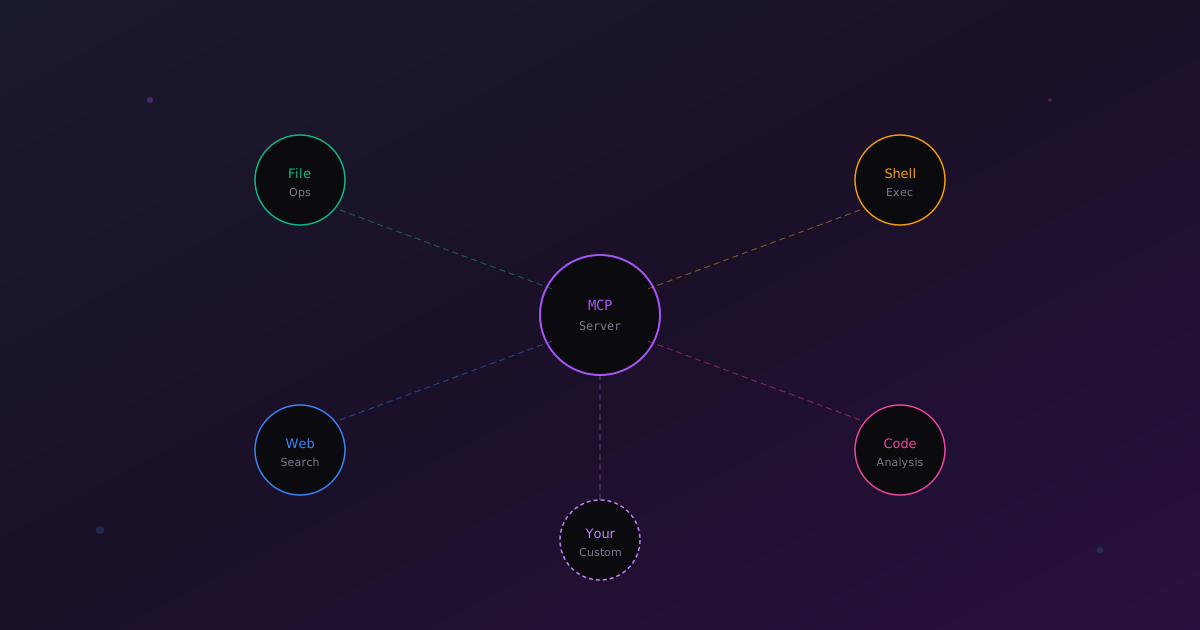
The Model Context Protocol standardizes how AI models interact with external tools. Instead of each provider inventing its own tool format, MCP gives you a common interface that works across all of them.
For Octomind, this means three things:
- Same tools, any model. Switch from Claude to GPT-4 to Gemini mid-session — your tools keep working.
- Runtime extensibility. Add new MCP servers while a session is running with the
/mcpcommand. No restart needed. - Scoped permissions. Each role defines exactly which tools are available. A read-only reviewer can't access the shell.
Built-In MCP Servers
Octomind ships with three servers that cover daily development work. They work out of the box — no configuration required.
Core Server
The core server handles orchestration:
| Tool | Purpose |
|---|---|
plan |
Structured task planning with progress tracking |
skill |
Load skills from installed taps |
agent |
Spawn and manage sub-agents |
schedule |
Inject messages on a delay |
mcp |
Add, enable, disable, or remove MCP servers at runtime |
The plan tool is what makes multi-step tasks reliable — the agent breaks work into tracked steps instead of trying to hold everything in context. The mcp tool is unique to Octomind: the agent can extend its own capabilities mid-session by registering new servers on the fly.
Filesystem Server (octofs)
This is where most of the work happens — an external binary called octofs that handles all file and shell operations:
| Tool | Purpose |
|---|---|
view |
Read files and directories with search |
text_editor |
Create, replace, insert, and undo file edits |
batch_edit |
Atomic multi-line editing operations |
extract_lines |
Extract and relocate code blocks |
shell |
Execute commands with timeout control |
The text_editor supports precise operations — str_replace for surgical edits, insert for new lines, undo_edit to revert mistakes. Combined with batch_edit for multi-line atomicity, the agent can refactor code confidently.
Agent Server
The agent server enables delegation. When a task benefits from a different specialist, the main agent spawns a sub-agent:
Main agent (developer:rust)
  └─ Sub-agent (security:owasp) → "Audit this auth module"
  └─ Sub-agent (developer:react) → "Update the frontend types"
Each sub-agent runs with its own context and tool permissions, then reports back. The main agent continues with the results.
Tool Permissions
Not every agent needs every tool. Octomind uses role-based scoping:
# A reviewer — can read code and search, but not edit or run commands
[[roles]]
name = "reviewer"
[roles.mcp]
server_refs = ["core", "filesystem"]
allowed_tools = ["view", "ast_grep"]

# A developer — full access
[[roles]]
name = "developer"
[roles.mcp]
server_refs = ["core", "filesystem", "agent"]
Add --sandbox to any session to restrict filesystem writes to your current working directory:
octomind run --sandbox
This is important when running untrusted agents or experimenting with new taps. The agent can read anything but can only write within the project.
Additional Capabilities via Taps
Taps distribute MCP server configurations as capabilities. When an agent references a capability, Octomind installs and configures the server automatically:
- Code search (octocode) — semantic search, function signatures, graph-based code relationship queries
- Memory (octobrain) — persistent memory across sessions with semantic search
- Web search (Tavily) — search the web and extract content from URLs
These aren't built into the binary — they're distributed through the tap system and installed on first use.
Building a Custom MCP Server
Any tool that speaks MCP can plug into Octomind. Here's a minimal server in TypeScript:
import { Server } from '@modelcontextprotocol/sdk/server/index.js';
import { StdioServerTransport } from '@modelcontextprotocol/sdk/server/stdio.js';

const server = new Server(
	{ name: 'database-tools', version: '1.0.0' },
	{ capabilities: { tools: {} } }
);

server.setRequestHandler('tools/list', async () => ({
	tools: [
		{
			name: 'query',
			description: 'Run a read-only SQL SELECT query',
			inputSchema: {
				type: 'object',
				properties: {
					sql: { type: 'string', description: 'SELECT query to execute' }
				},
				required: ['sql']
			}
		}
	]
}));

server.setRequestHandler('tools/call', async (request) => {
	const { sql } = request.params.arguments;

	if (!sql.trim().toUpperCase().startsWith('SELECT')) {
		return {
			isError: true,
			content: [{ type: 'text', text: 'Only SELECT queries are allowed' }]
		};
	}

	const results = await runQuery(sql);
	return {
		content: [{ type: 'text', text: JSON.stringify(results, null, 2) }]
	};
});

const transport = new StdioServerTransport();
await server.connect(transport);
Register It
Add the server to your Octomind config:
# ~/.local/share/octomind/config/config.toml
[[mcp.servers]]
name = "database"
type = "stdio"
command = "npx"
args = ["-y", "my-database-mcp"]
timeout_seconds = 30
Then reference it in a role:
[[roles]]
name = "analyst"
[roles.mcp]
server_refs = ["core", "filesystem", "database"]
Now octomind run analyst has database access alongside file and shell tools.
HTTP Servers
For shared or remote MCP servers, Octomind supports HTTP transport:
[[mcp.servers]]
name = "company-tools"
type = "http"
url = "https://mcp.internal.company.com"

[mcp.servers.auth]
type = "static"
token = "your-api-token"
OAuth 2.1 with PKCE is also supported for production setups.
Dynamic MCP
One of Octomind's distinctive features: the agent can register new MCP servers mid-session using the built-in mcp tool. No restart, no config editing.
The agent decides it needs database access, registers a server, uses it, and optionally persists the configuration for future sessions — all within the same conversation.
Best Practices
Keep tools focused. One tool, one job. A query tool that also formats reports is harder for the model to use correctly than two separate tools.
Write clear descriptions. The tool description is how the model decides when to use it. "Run a read-only SQL SELECT query" is better than "Database tool."
Validate inputs. The AI generates tool arguments — they won't always be perfect. Validate before executing, especially for operations with side effects.
Use sandbox mode. When experimenting with new agents or MCP servers: octomind run --sandbox.
Resources
- MCP Specification — the protocol standard
- MCP Tools Documentation — complete tool reference
- Tap Development Guide — build and distribute your own agents and capabilities
- Tap Registry — browse agents and capabilities